


.svg)
.svg)
.svg%201.svg)



Get Business Email
No domain name required

Key Takeaways
- What ChatGPT email integration does: It connects ChatGPT to your inbox so it can search, summarize and draft email. With your approval, it can also send. Without a connection, ChatGPT sees only what you paste in.
- The easiest way to connect ChatGPT to email: Use the connection your email provider supports. Neo Mail connects through Neo MCP, which also covers your calendar and contacts. Gmail and Outlook connect through ChatGPT's own plugins.
- When ChatGPT email integration needs an automation tool: Automatic replies to new email need an automation tool such as Zapier, Make or n8n. A custom build on the Gmail API or Microsoft Graph suits teams with developers.
- What people get wrong when connecting ChatGPT to email: They grant full access on day one. Start with read access, and keep approval on before ChatGPT sends anything.
Which email services work with ChatGPT?
What is ChatGPT email integration?
ChatGPT email integration connects ChatGPT to an email account or sending service. It allows ChatGPT to work with email data through an approved app, a secure connection provided by your email service, an automation platform, or an API.
ChatGPT handles the language and reasoning. It can understand a message, summarize a thread, extract information, or prepare a response. The connected email service handles mailbox access and actions such as searching, organizing, drafting, or sending.
Depending on the integration, you may be able to:
- Search for emails by sender, subject, date, keyword, or folder.
- Summarize long conversations and surface the main decisions.
- Find unread messages or conversations that need a reply.
- Draft new emails and responses in a specific tone.
- Extract deadlines, tasks, contact details, and meeting information.
- Create calendar events or check availability.
- Organize messages using folders or labels.
- Send an email after you review and approve it.
This is different from simply asking ChatGPT to write an email. Without a connection, ChatGPT cannot see your inbox. You must paste the relevant content into the chat and copy the completed draft back into your email service.
What are the four ways to connect ChatGPT to email?
How can you connect ChatGPT to email?
There are four common approaches in 2026:
1. Use a direct connection from your email provider
Some email providers offer their own secure bridge between ChatGPT and your inbox. The technical name for this bridge is Model Context Protocol, usually shortened to MCP. In simple terms, it lets ChatGPT communicate with your email account only after you sign in and approve the requested permissions.
This type of connection can do more than a basic AI writing extension. Depending on the provider, ChatGPT may be able to search and read emails, send messages, organize folders, access contacts, and work with calendar events. You do not need to understand the underlying technology to use it.
2. Use a supported Gmail or Outlook app
ChatGPT offers connected email experiences for Gmail and Outlook. Once the relevant app is connected, ChatGPT can use mailbox context to search, summarize, organize, and draft messages. OpenAI also supports drafting and sending emails from a ChatGPT conversation on the web for eligible paid plans, subject to the available permissions and user approval.
3. Use an automation platform
Tools such as Zapier, Make, and n8n can place ChatGPT between an inbox event and a follow-up action. For example, a new support message can trigger a workflow that sends the email text to an AI model, classifies its urgency, prepares a draft, and saves the result for review.
This option is better for repeatable workflows, but it requires more setup and introduces another service that may process email data.
4. Build a custom API integration
Technical teams can connect an email API, such as the Gmail API or Microsoft Graph, with the OpenAI API. This provides the greatest control over authentication, data handling, triggers, business rules, logging, and approval steps. It also requires development, testing, security monitoring, and ongoing maintenance.
Best email services for ChatGPT integration in 2026
The right option depends on whether you need a professional business inbox, an easy built-in connection, shared mailbox support, or a more customizable setup.
1. Neo Mail
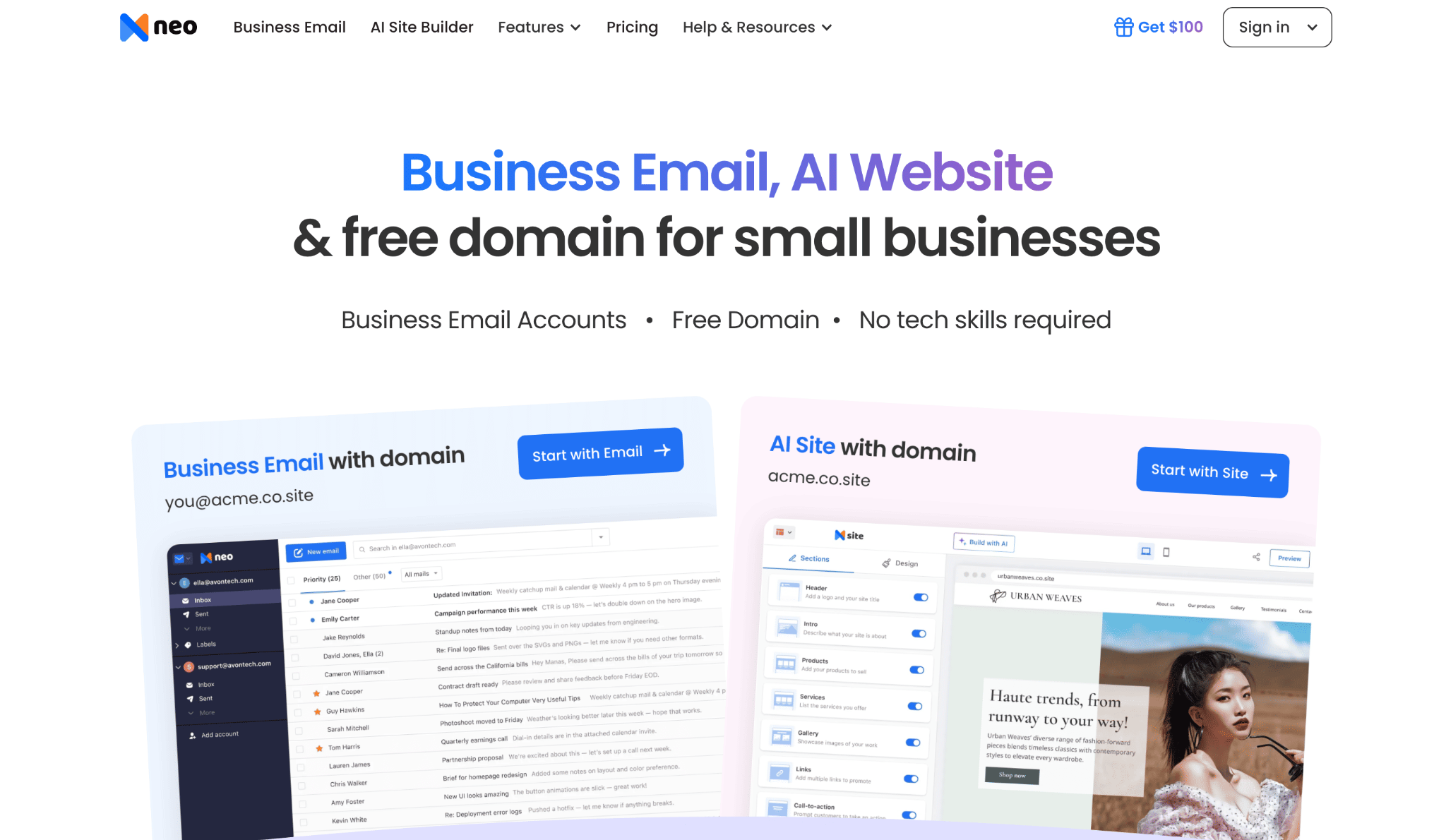
Neo Mail is a professional business email service for small businesses such as boutiques, consultants, online stores and real estate agents. It connects to ChatGPT directly, with no automation tool in between.
Neo Mail calls this connection Neo MCP. Once you authorize it, ChatGPT can interact with your professional inbox, calendar, and contacts through everyday prompts. You can search, read and send email, and manage folders and labels. You can also view events, check attendee availability, create events and find contacts (Source: Neo Mail's connection guide).
A business owner can ask ChatGPT to find recent client inquiries and draft follow-ups. ChatGPT can then check the calendar before proposing a meeting time. About 1 in 3 G2 reviewers single out its ease of use (Source: G2).
Neo Mail also includes professional email tools such as Read Receipts, AI Smart Write and a free AI website. Every Neo Mail plan includes a free domain if you don't have one. Plans start at $1.25 per mailbox per month on the 4-yearly plan, and you can try it free for 15 days.
The catch is the Starter plan: it caps sending at 500 emails per day, and Send Later and Priority Inbox need Standard or above.
How to connect Neo Mail to ChatGPT?
You connect Neo Mail to ChatGPT by turning on Developer Mode, creating a Neo MCP app, and signing in to your Neo Mail account. Once connected, ChatGPT can search and send email, check your calendar and find contacts through everyday prompts (Source: Neo Mail's connection guide).
How to connect Neo Mail to ChatGPT:
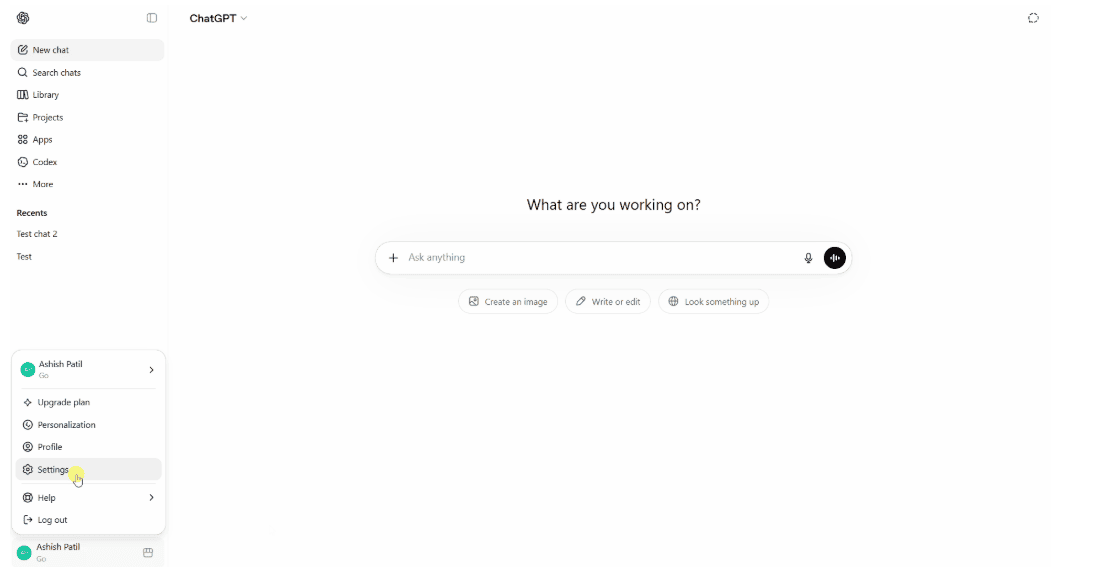
1. Sign in to ChatGPT, click your profile picture, and select Settings.
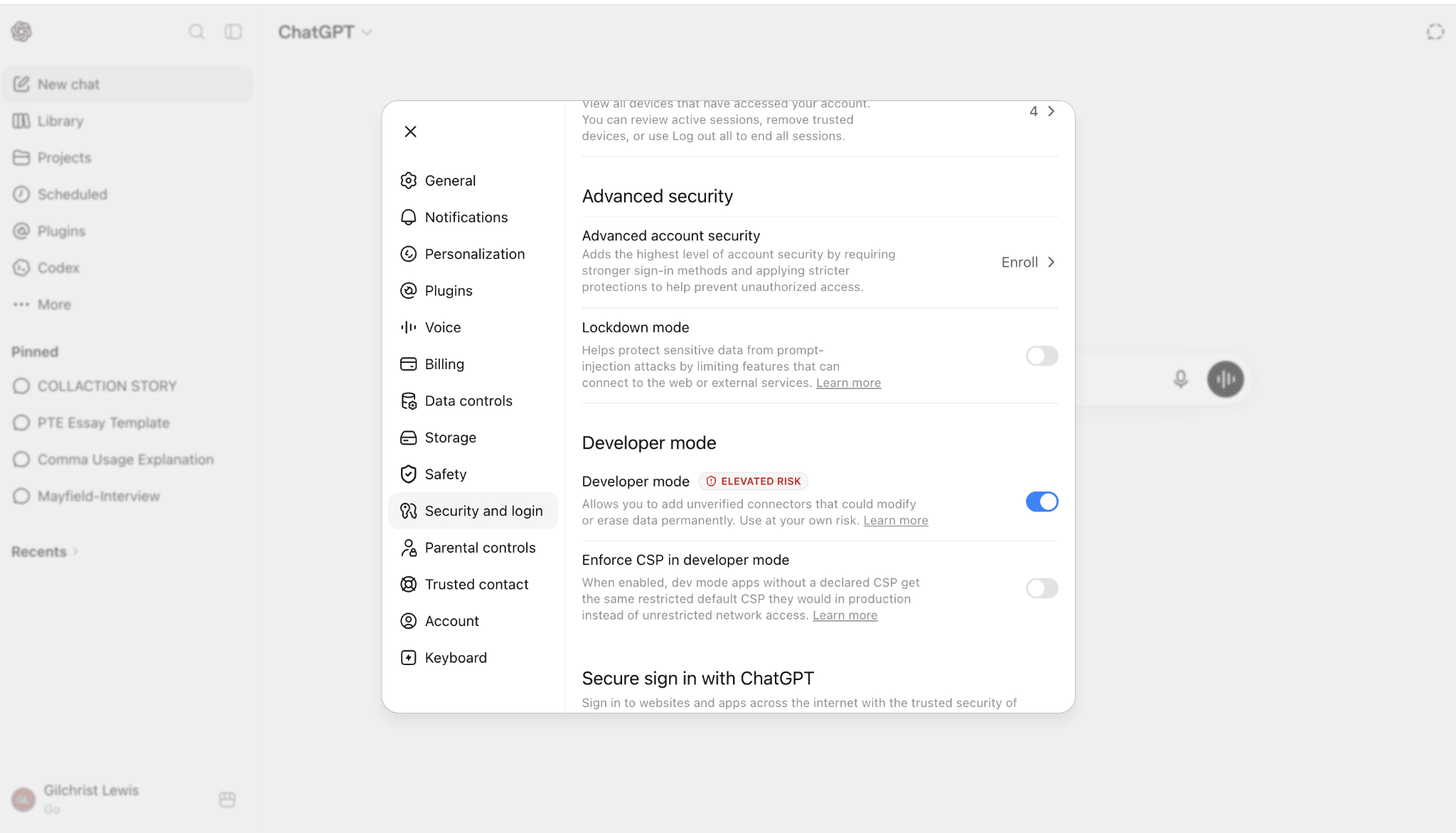
2. Open Security and login and turn on Developer Mode.
3. Click Create App.
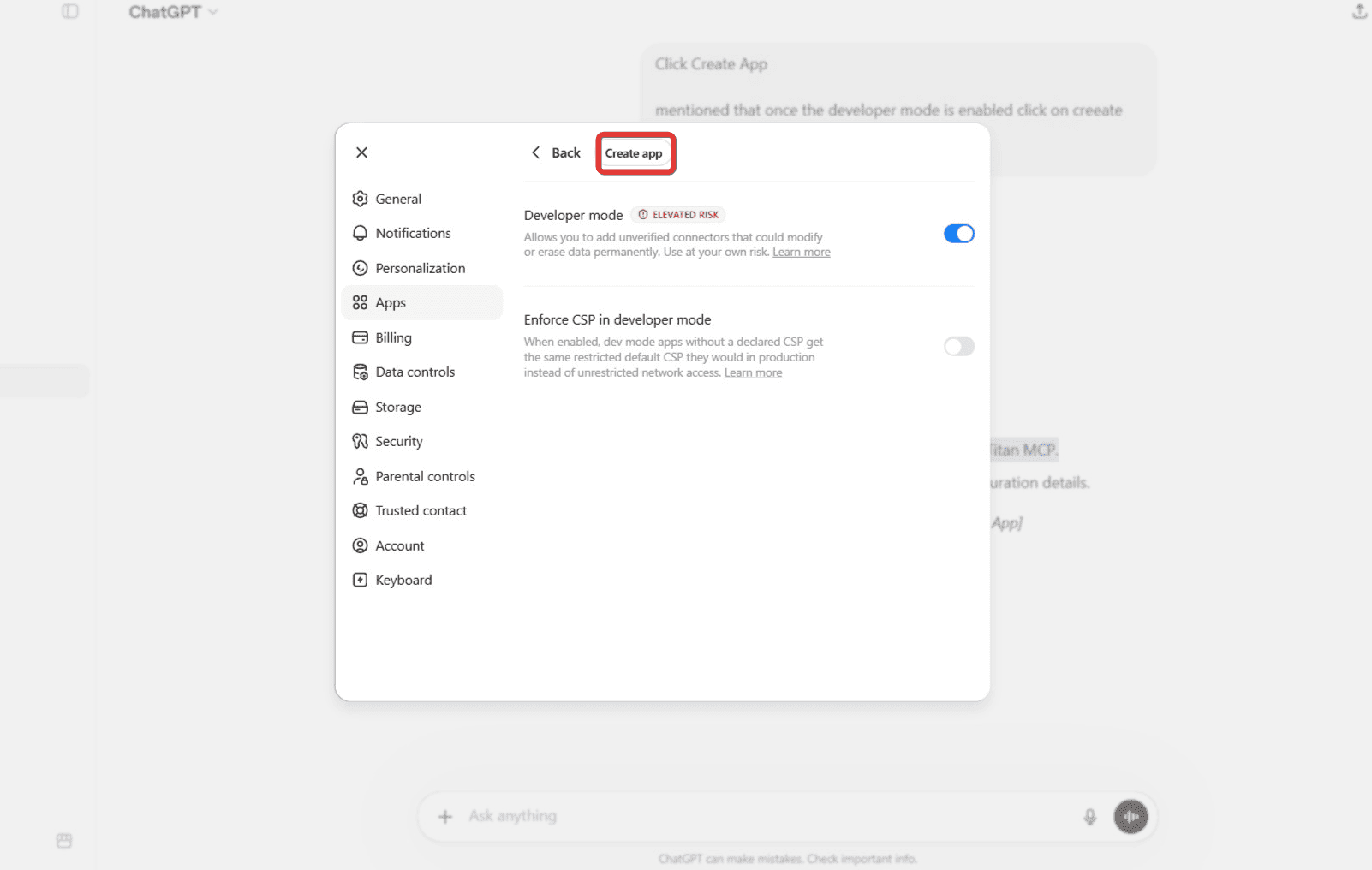
Now enter the following details:
- Name: Neo MCP
- MCP Server URL: https://api.neo.space/mcp
- OAuth Client ID: chatgpt (under Advanced OAuth settings)
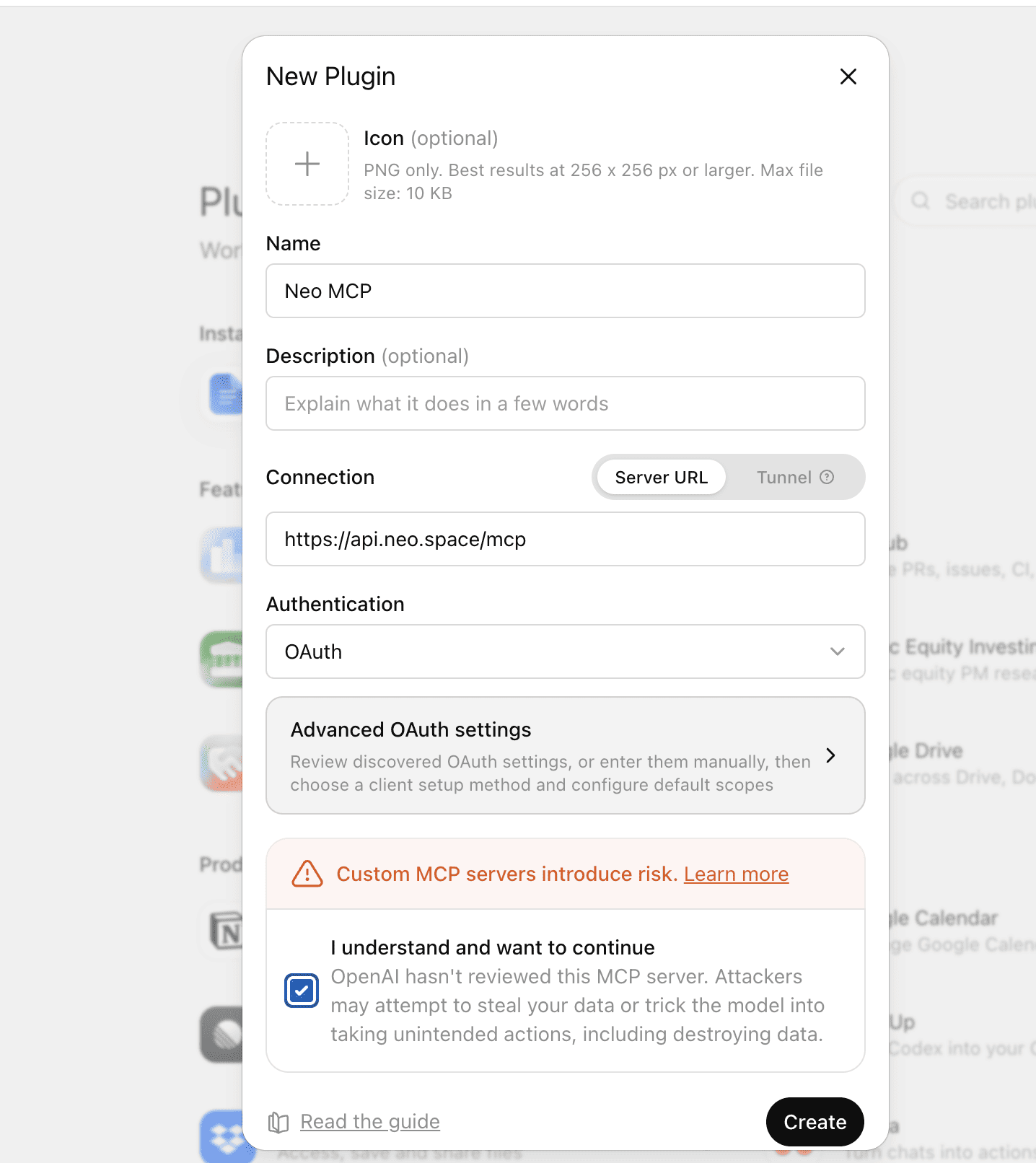
4. Select the "I understand and want to continue" checkbox to confirm you trust the Neo MCP server, then click Create.
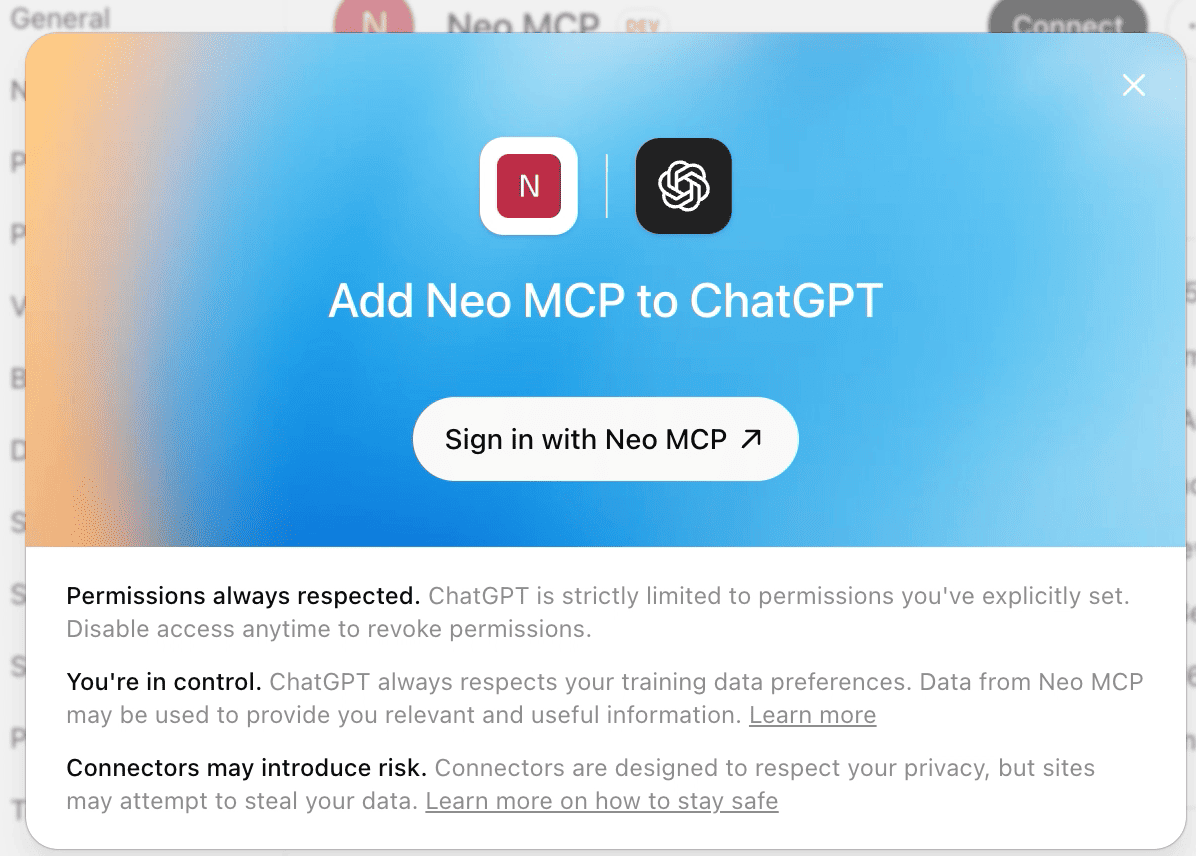
5. On the authorization screen, click Sign in with Neo MCP.
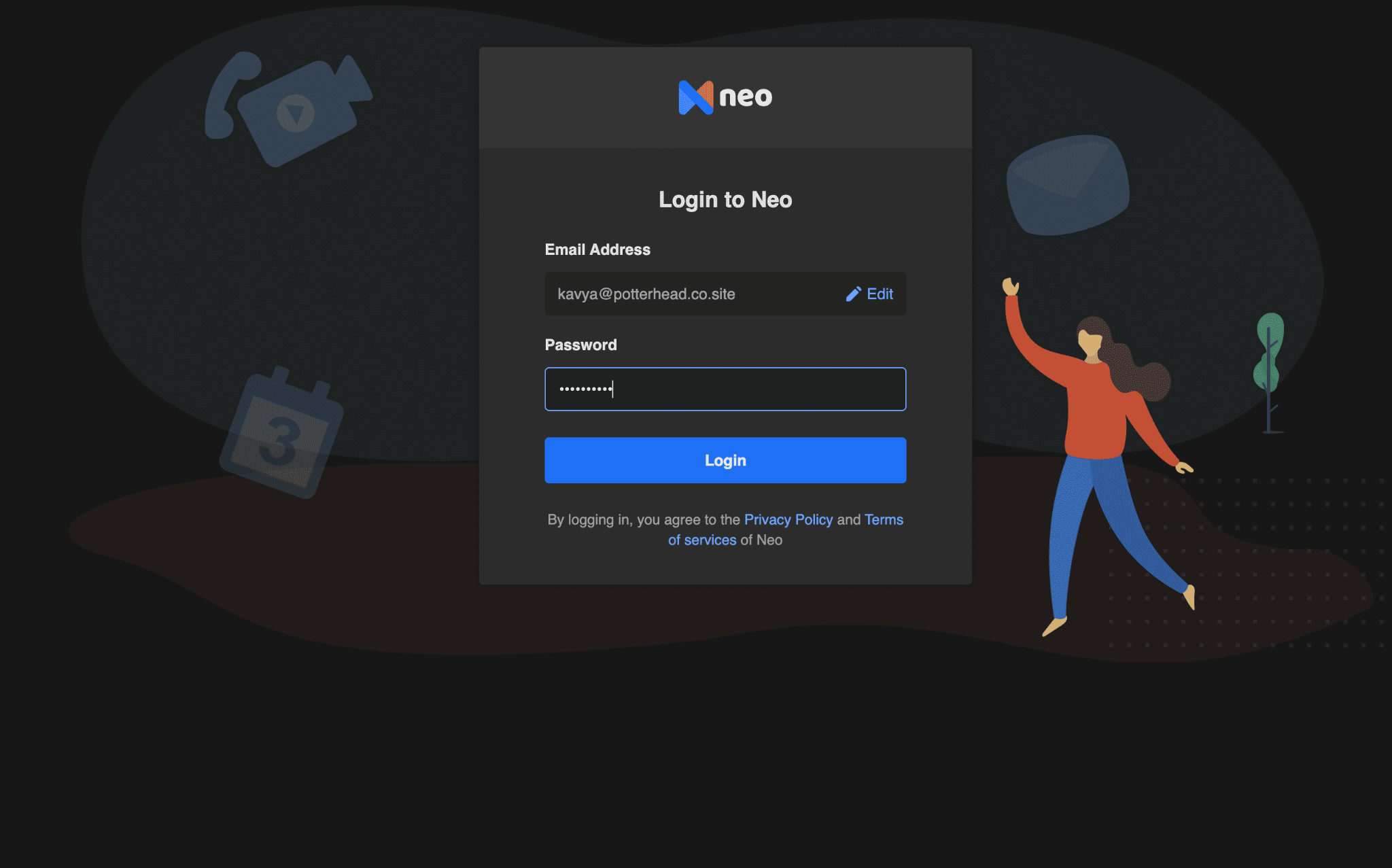
6. Enter your Neo Mail email address and password, then click Login.
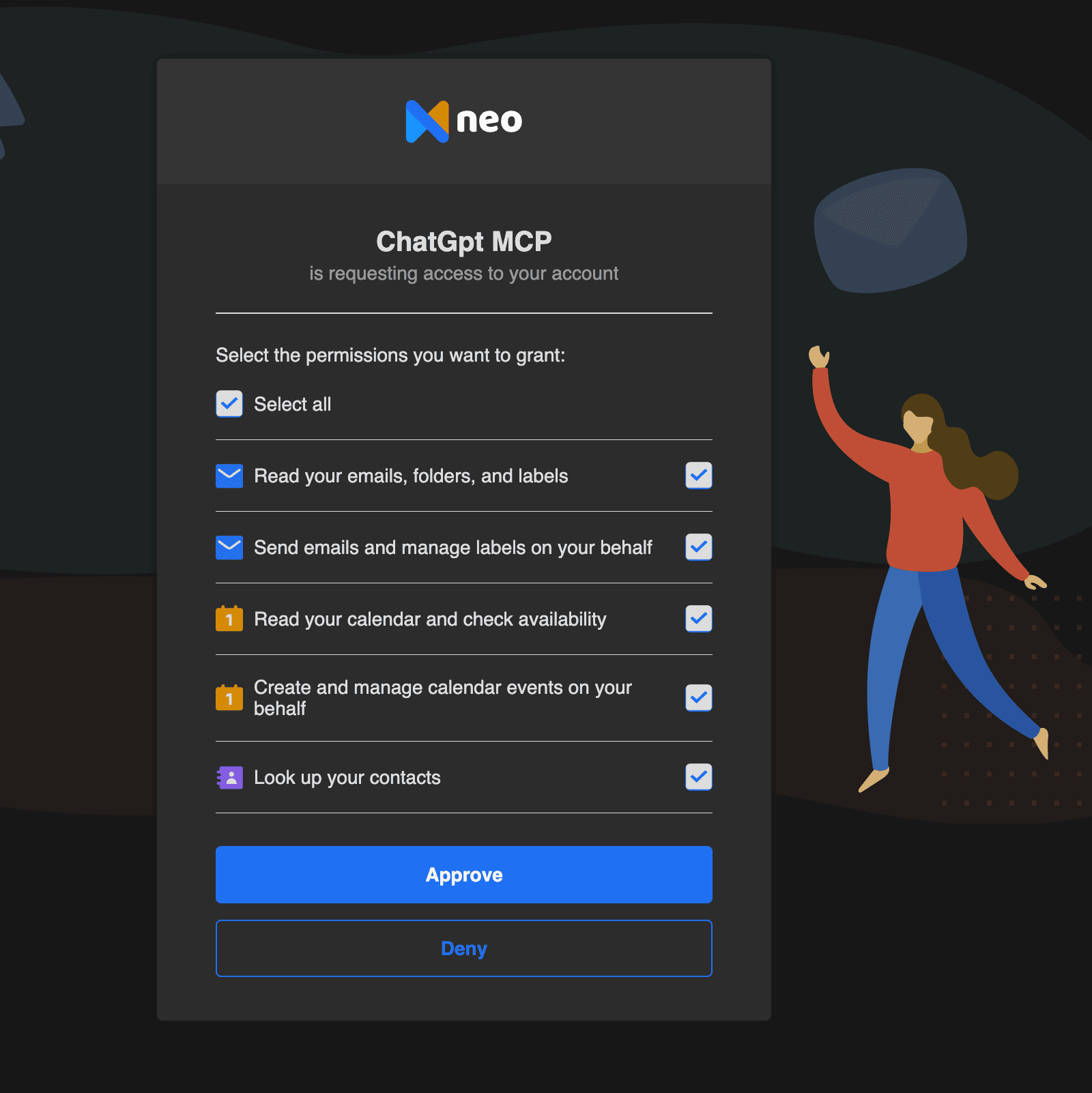
7. Review the permissions and click Approve.
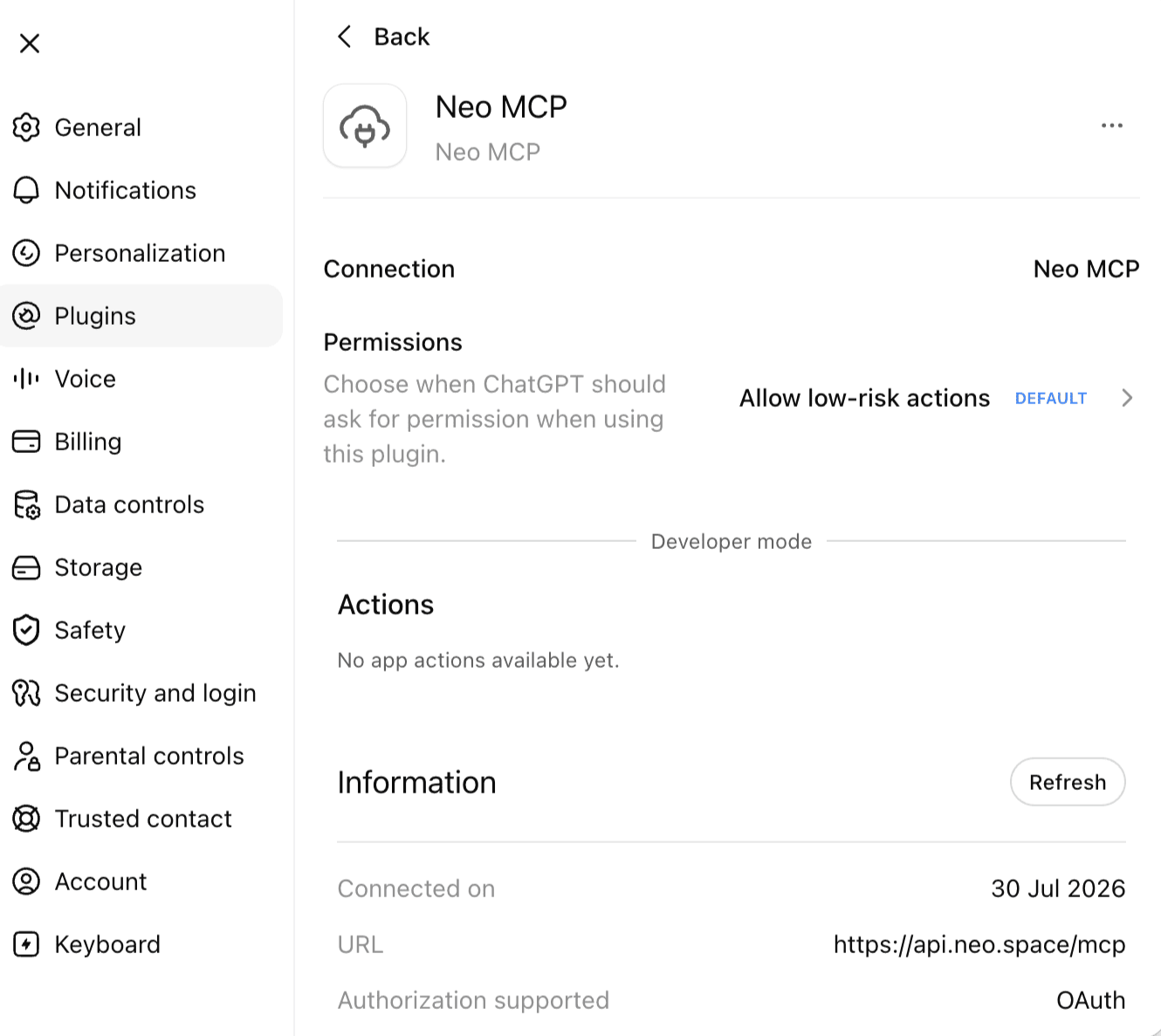
8. Check that Neo MCP appears under Settings > Apps > Enabled apps.
Use your own ChatGPT account for this connection, not a shared login. On a shared account, other users may be able to reach your mailbox.
Example prompt: "Find all unread emails from potential customers this week, summarize what each person needs, and draft a short response for each one. Do not send anything until I approve it."
2. Gmail
Gmail is one of the easiest choices for people who already use Google’s email ecosystem. According to OpenAI’s inbox management guide, the Gmail plugin can search and triage threads, create reply drafts, and organize email when instructed.
OpenAI introduced the ability for eligible Plus, Pro, Business, and Enterprise users to draft and send Gmail messages from a ChatGPT conversation on the web. ChatGPT prepares the message and presents it for approval before sending.
Gmail is a practical choice for individual users and teams that want a straightforward connection without configuring a custom bridge or automation. However, the exact tools available can vary by ChatGPT plan, app version, workspace settings, and administrator controls.
Basic setup:
- Open the Plugin Directory or Apps settings in ChatGPT.
- Find Gmail and select the option to connect it.
- Sign in to the correct Google account.
- Review the requested permissions carefully and authorize only what you need.
- Open a new chat, select or mention Gmail when required, and enter your request.
Example prompt: “Show me the five most important unread emails from today, explain why each needs attention, and draft replies in a warm, concise tone.”
3. Outlook
Outlook is a strong option for businesses that use Microsoft 365. The official Outlook Email app documentation states that ChatGPT can search and retrieve messages, use structured filters, return message text, and work with people and saved contacts. Supported actions depend on permissions and workspace settings.
Outlook can also support shared and delegated mailbox workflows when the right Microsoft Graph permissions are approved. This is valuable for teams managing shared addresses such as sales@, support@, or billing@.
Business deployments may require both a ChatGPT workspace administrator and a Microsoft Entra administrator to approve access. Very recent messages may also take a short time to appear because search relies on Microsoft Graph indexing.
Basic setup:
- Open the Plugin Directory or Apps settings in ChatGPT.
- Find Outlook Email and connect your Microsoft account.
- Review the Microsoft permissions and complete any administrator approval required by your organization.
- Ask ChatGPT to search, summarize, organize, or draft using your Outlook mailbox.
- Review any proposed email or mailbox action before confirming it.
Example prompt: “Find messages sent to our shared support mailbox in the last two days that have not received a response, group them by urgency, and draft a reply to the most urgent one.”
What can ChatGPT do once it is connected to your email?
Prioritize an overloaded inbox
Ask ChatGPT to find unread or unanswered messages and group them by urgency. This is useful when returning from leave or managing an inbox that receives many customer requests.
Summarize long email threads
ChatGPT can turn a lengthy conversation into a short summary with decisions, open questions, and next steps. Ask it to separate confirmed facts from unresolved points so important details do not get lost.
Draft replies using inbox context
When the integration can access the original thread, ChatGPT can prepare a response based on the actual conversation. Include clear instructions about tone, length, purpose, and any points that must be addressed.
Find leads that need follow-up
Salespeople, freelancers, real estate agents, and consultants can search for prospects who asked for pricing, requested a meeting, or stopped responding after receiving a proposal.
Extract tasks and deadlines
Ask ChatGPT to create a table containing the task, owner, deadline, and source email. Always check dates and responsibilities against the original message before acting.
Coordinate email and calendar work
If the integration supports calendars, ChatGPT can check availability or create an event after reading the relevant conversation. This can simplify appointment scheduling and project coordination.
Which prompts should you try in a connected inbox?
Try these prompts after connecting your email account:
- “Summarize my unread client emails from the last three days. List the sender, request, deadline, and recommended next step.”
- “Find every email that mentions an unpaid invoice from July 2026. Do not send or modify anything.”
- “Show me prospects who requested a demo but have not received a reply.”
- “Draft a friendly follow-up to the latest email from [name]. Keep it under 100 words and do not invent any details.”
- “Identify action items in the last five messages about [project]. Include a link or reference to the source message for each item.”
- “Check my availability next Tuesday and draft a reply offering two open 30-minute meeting times.”
- “Group today’s messages into urgent, reply this week, informational, and promotional. Explain uncertain classifications.”
Is it safe to connect ChatGPT to email?
Connecting an AI assistant to email can be useful, but it expands the data and actions available to the assistant. Treat the setup as a business system connection, not just a writing shortcut.
OpenAI’s current app controls can let users or workspace administrators decide when ChatGPT asks for permission. Sending or editing an email is treated as an important action, and the default setting generally requires approval for actions with meaningful external effects. Available controls can vary by app, account, and workspace configuration.
Follow these practices:
- Connect only official or trusted email apps and provider connections.
- Review every requested permission before authorizing access.
- Use a personal, password-protected ChatGPT account rather than a shared login.
- Start with read-only access when possible.
- Require approval before sending, deleting, moving, or editing messages.
- Avoid giving the integration broader mailbox access than the workflow needs.
- Do not place passwords, authentication codes, banking data, or highly sensitive personal information in prompts.
- Review AI-generated summaries and drafts against the original emails.
- Disconnect integrations that are no longer used.
- Ask your administrator to review access, retention, and compliance requirements before a company-wide rollout.
OpenAI also warns that untrusted third-party connections can create risks, including malicious instructions hidden in content. Only add a connection that you have verified, and be cautious when an email asks the assistant to reveal information or perform an unrelated action.
What should you check before you connect ChatGPT to email?
Before connecting your inbox, answer these questions:
- What should ChatGPT be able to do? Decide whether you need writing help, inbox search, organization, calendar access, sending, or event-based automation.
- Does your provider offer a direct connection? A supported app or secure connection managed by your email provider is usually simpler than building a custom workflow.
- Which permissions are required? Read access, send access, contacts, and calendars are separate capabilities. Grant only what you need.
- Does your ChatGPT plan support the setup? App availability, Developer Mode, and email sending can depend on your plan and workspace configuration.
- Does your organization require admin approval? Business accounts may be restricted by ChatGPT workspace controls, Microsoft Entra permissions, or internal security policies.
- Will a person review outbound messages? Human approval is advisable for client communication, financial matters, legal topics, and other high-impact emails.
- Do you need triggers? A conversational connection responds when prompted. Automatic workflows usually require an automation platform, webhook, scheduled task, or custom API process.
FAQs
1. Can ChatGPT connect directly to email?
Yes. ChatGPT can work with supported email apps such as Gmail and Outlook. Providers such as Neo Mail also offer their own secure connections. Availability and capabilities depend on your ChatGPT plan, email plan, permissions, and workspace settings.
2. Can ChatGPT read my emails?
ChatGPT can read or search emails only after you connect and authorize an integration that provides mailbox access. Without an integration, it can work only with email content that you manually paste or upload.
3. Can ChatGPT send emails?
Yes, in supported configurations. Gmail and Outlook can support drafting and sending from ChatGPT for eligible paid users. The direct connections offered by Neo Mail also include email sending. You should review the recipient, facts, tone, and attachments before approving any message.
4. Can I connect ChatGPT to a business email address?
Yes, provided your email provider offers a compatible app, secure provider connection, API, or supported connection through an automation platform. Neo Mail offers its direct ChatGPT connection on select plans. Outlook also support business use cases.
5. What is the easiest way to connect ChatGPT to email?
The easiest route is usually the connection supported directly by your provider. Neo Mail users can use their provider-managed connection, while Gmail and Outlook users can add the relevant app in ChatGPT. If no direct option is available, an automation service can bridge the systems.
6. Can ChatGPT automatically reply to every new email?
A normal connected inbox generally responds to prompts rather than every new message. Fully automatic replies require a trigger and a sending mechanism, such as an automation platform, webhook, or custom API workflow. For customer-facing email, keep human review in the process until the workflow has been thoroughly tested.
7. Is ChatGPT email integration free?
Manual copy-and-paste drafting can be done without an email integration. Direct apps, Developer Mode, provider connections, sending features, and automation platforms may require eligible paid plans. Check the current pricing and feature availability for both ChatGPT and your email provider before choosing a setup.
Get Business Email
No domain name required
